
 SFTPPlus
HTTP / HTTPS Service#
Introduction#
This page contains information on the usage and behaviour of the http and https file transfer services.
The HTTP / HTTPS file transfer service provides a HTML-based interface designed to work in any web browser, including older versions of browsers where JavaScript or cookie features are either not supported or enabled.
The same HTTP/HTTPS file transfer service allows receiving files over the AS2 protocol. Check the dedicated AS2 server usage to learn more about the SFTPPlus AS2 server.
There is also a REST JSON API and WebDAV API available, designed to allow 3rd party applications to exchange files with SFTPPlus. Check our developer documentation to learn more about the available APIs.
Configuring and testing the public URL#
Set the HTTP or HTTPS service's base_url to the public address used to access the service. SFTPPlus uses this address to build password recovery links. For example, use https://files.example.com. The URL must identify the service root without credentials, a path prefix, a query, or a fragment. Use HTTPS to protect recovery links and passwords in transit.
This option is required when password recovery is enabled. The service cannot start if the URL is missing or invalid. The recovery URL is resolved at startup; changing this option requires a service restart. It does not change the service's listening address or its URL paths.
Use the Test button next to Public URL in the Web Manager to check the address before saving. Your browser requests the public __chsps__/constants.js resource and checks its response without executing the script. For HTTPS, your browser must trust the public service's certificate. A Web Manager opened over HTTPS cannot test an HTTP URL because browsers block mixed content.
See HTTP / HTTPS / AS2 for the base_url configuration option.
Recovering a forgotten password#
Web Client gen3 can send a password recovery link to an account's configured email address. An administrator must enable recovery on both the HTTP or HTTPS service and the account's primary group, configure the service's public URL, and configure the default Email Client resource. See Password updates and recovery for the requirements and configuration steps.
On the login page, select Forgot your password?, enter your email address, and select Send recovery link. The confirmation is the same whether or not the email address belongs to an eligible account. If an address belongs to more than one account, SFTPPlus does not send a recovery email. Contact the server support team if you cannot receive a link.
Open the link in the email, enter and confirm a new password, and select Save new password. After the success message, select Back to login to sign in with the new password. Your new password must meet the server's password policy. Existing multifactor authentication requirements remain in effect.
Recovery links expire after 15 minutes and can reset a password only once. If a password is rejected by the password policy, enter a compliant password and submit the same form again. The link remains valid until its original expiry time. For other recovery failures, request a new link using your original email address. Links are also invalidated when the HTTP or HTTPS service stops or restarts, when the account's password changes, or when the account no longer qualifies for recovery. SFTPPlus keeps only a hash of each recovery token in memory.
Each accepted recovery request invalidates earlier links for the same account.
Each HTTP service accepts at most ten recovery requests per source IP address in a 10-minute window. Additional requests receive a generic rate-limit error and do not send email or invalidate existing links. Unknown email addresses also count towards this limit. Behind a reverse proxy, recovery uses the same client_forwarded_header configuration as authentication.
The service tracks up to 10,000 source IP addresses at a time. If this capacity is reached, requests from new sources receive the same generic rate-limit error until an existing window expires. The limit is held in memory and resets when the service restarts. It limits individual sources; clients using different source IP addresses have separate limits. Only the link from the latest request can be used.
If you receive a recovery email you did not request, you can ignore it or report the incident to the server administrator. Recovery requests, email delivery results, and password recovery results are recorded in the activity log.
HTTP protocol compatibility#
The HTTP protocol is implemented based on RFC 2616, while the HTTPS protocol is based on RFC 2818.
The Web Manager GUI provides configuration options and status indications to the state of the http or https service:

For more details about the configuration options, please go to the dedicated HTTP/HTTPS configuration page.
File management functionality#
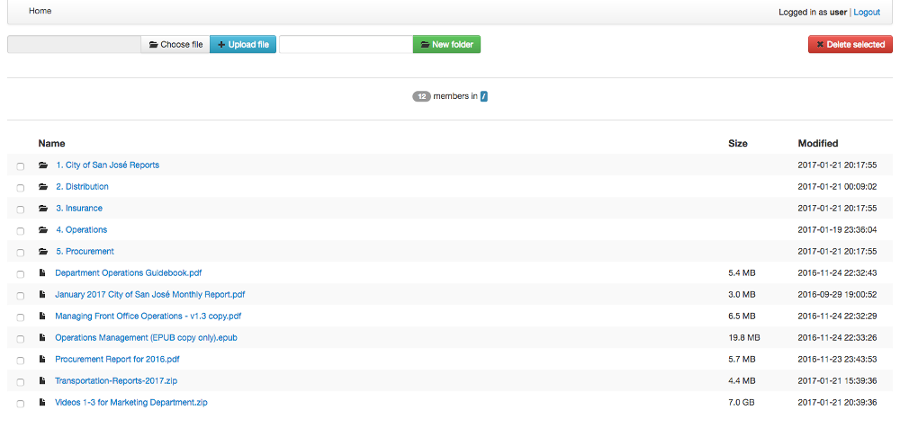
Above is a screenshot of the HTTP / HTTPS file management functionality.
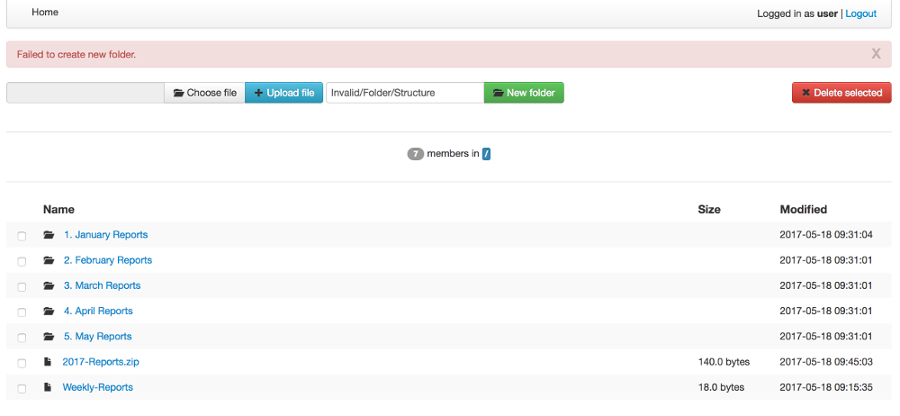
Above is a screenshot of how errors are communicated - in this case, when an invalid folder is being created.
The HTTP and HTTPS service allows the same level of file access as the other available file transfer services such as FTPS or SFTP.
When using the file transfer service in a browser without JavaScript or cookies, some of the advanced features are not available.
Basic features, listed below, are supported:
Authenticate using HTTP Basic Auth method
Navigate folders' structure
Download files
Create new folders
Upload files
Delete files and folders
Recursive deletion of a folder
Legacy UI appearance#
Latest versions of SFTPPlus include an updated web user interface that for added functionality convenience are using web browser capabilities only available in latest generation web browsers.
For legacy purposes or to avoid disrupting existing web UI file transfer processes, you can configure the HTTP web client to use an older version of the user interface:
[services/9ac4-1054-f0e4]
name = HTTPS File Transfer Service
type = http

ui_version = ui-gen-1
This will use the UI available in SFTPPlus version 4.15.0 or older.
The latest UI version is ui_version = ui-gen-2.
Third-generation login#
With ui_version = ui-gen-3, the login page displays a button for each configured OpenID Connect authentication method enabled for the HTTP/HTTPS service. You can offer multiple Microsoft Entra ID, Google, or Okta methods on the same login page. Each button displays the authentication method's configured name and an icon identifying the provider.
Configure the service's authentications option to select its authentication methods. When this option is empty, the service uses the server's authentication methods. Stopped or failed methods remain visible on the login page. Restart the HTTP/HTTPS service after changing its authentication methods or the inherited server list. The provider configuration and callback URLs are the same as for the second-generation Web Client.
Password authentication methods share a username and password form. When there is only one password authentication method, its name appears above the form. The separate two-factor authentication code field is available when application authentication is enabled. If only OpenID Connect methods are available, the password form is hidden.
Custom appearance#
Attention
The custom appearance functionality is released as a feature preview. We encourage you to try this functionality and send feedback. The HTML and CSS markup might be changed in future releases.
The appearance of the HTTP service pages can be customized by overwriting the default CSS of the HTTP service pages and executing custom JavaScript code.
Using the theme_path configuration option you can instruct SFTPPlus to load a custom theme for the HTTP pages.
The theme path should contain at least the following files:
main.css
main.js (only available in gen1)
logo.svg (used in gen2 and for the light theme in gen3)
logo-dark.svg (used for the dark theme in gen3)
favicon.ico
If you don't need to customize the CSS or JavaScript leave the file empty.
In gen3, the login page and file browser use logo.svg for the light theme and logo-dark.svg for the dark theme. When using a custom theme, provide both logo files. You can use the same image for both files if your logo is suitable for both themes.
The name of the HTTP/HTTPS service will be used as the page name on the login page and the file browser page.
Note
When changing the service name, you will need to restart the HTTP/HTTPS service. Restarting the whole SFTPPlus application is not required.
The main.css file from the theme path is loaded as the last CSS file. The main.jss file from the theme path is loaded at the end of the page as the last JavaScript file.
The theme files are accessible inside the HTTP service as /__chsps__/theme/.
To load the theme files from C:\File-Server\Theme you need to configure
the service as:
[services/9ac4-1054-f0e4]
name = HTTPS File Transfer Service
type = https

theme_path = C:\File-Server\Theme
For example C:\File-Server\Theme\main.css can make buttons rounder and hide the MFA field on the login page
(while C:\File-Server\Theme\main.js can be empty):
.btn.btn-outlined {
    border-radius: 1.125rem;
}

[data-theme="login-mfa-input"] {
    display: none;
}
Below is the list of data-theme HTML attributes that control the appearance of parts of the login page:
* `data-theme="login-username-prompt"` Username label and input
* `data-theme="login-password-prompt"` Password label and input
* `data-theme="login-mfa-input"` MFA/TOTP code label and input
* `data-theme="login-no-cookies"` Link to authenticate for browser without cookie enabled
* `data-theme="login-username-password"` Button to authenticate with username/password credentials
* `data-theme="login-oidc"` OpenID Connect or MS Entra ID login label and button
* `data-theme="login-oidc-alternative"` Text presented when OpenID Connect is an alternative login method
* `data-theme="login-footnotes-button"` Button that triggers the login dialog to display terms or service or usage help information.
* `data-theme="login-footnotes-dialog"` UI dialog element in which the terms or service or usage/help information is displayed.
If you find it hard to customize certain UI elements, get in touch with us. We will consider updating the default HTML / CSS markup to make it easier for you to apply custom CSS rules.
Custom service information link#
You can configure the login page to show a custom link which opens a message box with more info when pressed.
This is done using the login_footnotes configuration option. This configuration option is defined on multiple lines.
To define a link with the text Terms of Service that opens a message box titled ACME Company Terms of Service containing your terms of services, use a configuration similar to this example:
[services/9ac4-1054-f0e4]
name = HTTPS File Transfer Service
type = https

login_footnotes = Terms of Service
    ACME Company Terms of Service

    Posted: 21 March 2024
    Effective: 1 June 2024

    Thank you for using our product!

    These Terms of Service cover your use of the ACME Company services.
    When you use our services, you provide us your files and their content.

    These terms don't give us any rights to your content, except for the limited rights that enable us to offer these services.
Custom trigger buttons#
Using the triggers configuration of the HTTP and HTTPS file transfer service, you can define one or multiple custom buttons which are displayed on the web client page.
When defining the action name for a trigger, make sure you don't use common operation names like delete, create-folder, upload-file, which will conflict with the existing file operations.
When pressed, these buttons will emit the event with ID 40043, event which can be linked to an event handler to trigger one or more actions on the selected files.
- The following types are available:
primary (dark blue)
info (light blue)
success (green)
warning (amber)
danger (dark red)
inverse (black)
You can define custom button types, by creating btn-TYPE_NAME CSS classes inside the custom CSS file defined via theme_path.
The buttons can be displayed for all users, or only for the members of a specific group.
When no group configuration is defined, the button is displayed for members of all groups.
If you want a button to be visible to members of multiple groups, create separate trigger definition for each group.
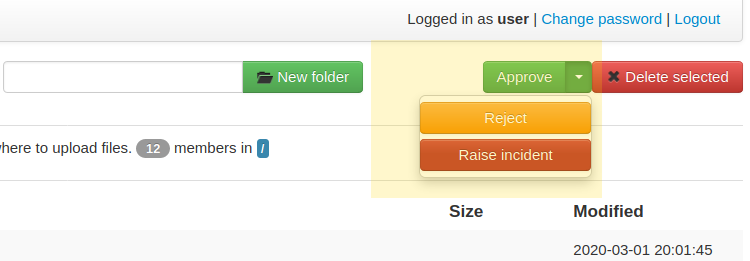
Below is an example of 4 buttons which will be displayed under the following conditions.
Approve is a green button available only to members of the supervisor group.
Reject is an amber button available to members of the supervisor group and the users group.
Cancel is a light-blue button available only to members of the users groups.
Report button is a red button displayed for any user.
[services/9ac4-1054-f0e4] name = HTTPS File Transfer Service type = http
- triggers:
Approve, success, SUPERVISORS_GROUPS_UUID Reject, warning, SUPERVISORS_GROUPS_UUID Reject, warning, USERS_GROUPS_UUID Cancel, info, USERS_GROUPS_UUID Raise incident, danger
Load balancer#
The HTTP/HTTPS services of SFTPPlus can be integrated in a load balancing solution.
Installations using the same service configuration intentionally use the same session cookie name, even when they listen on different ports. They represent one logical service behind a load balancer. Browsers do not separate cookies by port, so direct access to both installations on the same hostname does not provide independent sessions. Use different service UUIDs if the installations need independent sessions. Each installation keeps its sessions in its own memory, so the load balancer must send a client's requests to the installation that created the session. A shared cookie name alone does not let a session move between installations.
SFTPPlus requires no extra configuration when functioning behind a layer 4 TCP balancer or DNS load balancer.
AWS Network Load Balancer and Azure Load Balancer are examples of layer 4 load balancers.
For Layer 4 load balancers, make sure the forwarded traffic has a persistent session based on the client's source IP address.
When using a layer 7 HTTP/HTTPS load balancer, you will need to adjust Cross-Site Request Forgery (CSRF) protection. This is because the HTTP load balancer is not updating some of the headers found in the initial request when forwarding a request to the load balanced node. This result in a request that appears to be coming from a different site.
AWS Application Load Balancer and Azure Application Gateway are examples of Layer 7 load balancers.
For HTTP / Layer 7 load balancers, enable session affinity (sticky sessions) so a browser session stays on the installation that created it. For cookie-based affinity, a load balancer may set its own routing cookie, separate from the SFTPPlus session cookie SESSION-<percent-encoded service UUID>. There is no standard name for the load balancer's affinity cookie; use the name and configuration documented for your load balancer. If the load balancer supports affinity based on an application cookie, configure it with the exact SFTPPlus session cookie name for the service.
When the HTTP/HTTP file transfer service is not configured for the load balancer, you will see 400 Possible CSRF errors.
When the load balancer is configured with the listeners
https://files.example.com on default port 443 and
https://www.example.com on port 10443, and it
forwards all requests to SFTPPlus at http://worker1.example.com,
you will need to configure SFTPPlus as follows:
[services/9ac4-1054-f0e4]
name = HTTPS File Transfer Service
type = http
address = worker1.example.com
port = 18080

accepted_origins = files.example.com, www.example.com:10443
If you have an HTTP (unsecure) load balancer that is accesses by the users as
http://files.example.com and it forwards all requests to SFTPPlus at http://worker1.example.com,
you will need to configure SFTPPlus as follows,
adding http as the first value for accepted_origins:
[services/9ac4-1054-f0e4]
name = HTTPS File Transfer Service
type = http
address = worker1.example.com
port = 18080

accepted_origins = http, files.example.com
Public site#
SFTPPlus can serve as a public file transfer server. Visitors can access files on the server without prior authentication.
To enable public access, you need to explicitly define an application account to be used for handling the files via the public interface.
The account will define the path from where the public files are served and the permissions used for each file.
The public site is not limited to read-only access. Visitors of the public site will have the same access as defined in the public account configuration.
The public file access is recorded in the audit log under the configured account. It is recommended to set up a dedicated account for the public access and not to reuse an existing account.
Below is an example for a general download-only public root access,
which will deny downloading any .exe. file and
allow uploading files inside the /reports/ folder.
The public files will be available at the following URL: https://example.tld/public-access.
In this example, public access will no longer be available after the 23rd of March 2025, when the public account is set to expire.:
[services/9ac4-1054-f0e4]
name = HTTPS File Transfer Service
type = https

public_account_uuid = 92ad5b32-d8d7-4ed8-94e1-dbb9f01383f4
public_name = public-access

[accounts/92ad5b32-d8d7-4ed8-94e1-dbb9f01383f4]
name = public-http
type = application
description = Files available without password over HTTP.
group = 95373161-b944-4d70-af5e-cab1976cc535

home_folder_path = /local/path/to/public/files
default_permissions = allow-read, allow-list
path_permissions =
    *.exe, deny-full-control
    /reports/, allow-write

expire_datetime: 2025-03-23

[groups/95373161-b944-4d70-af5e-cab1976cc535]
name = http-group
virtual_folders: /shared, /ftp-files/shared
The create_home_folder and home_folder_structure account and group configurations are ignored for the public HTTP access.
Authentication process#
The HTTP file transfer service will use a single cookie to manage the authentication process.
A single session cookie is used for all the file transfer operations.
The session cookie is set with httpOnly and sameSite options. For the HTTPS service, cookies are set with the secure option.
For simple usage via the command line with tools like as cURL or Wget, HTTP Basic Auth is available.
Warning
HTTP Basic Auth will send credentials in a plain text encoding and it is not recommended to use HTTP Basic Auth over unsecured HTTP connections.
HTTP/1.1 100 Continue status code#
HTTP/HTTPS file transfer service can handle HTTP/1.1 client requests made using the 100 (Continue) status. This allows the client sending the request message with a given request body to determine whether the origin server is willing to accept the request (based on the request headers) before the client sends the request body.
For example, it might be inappropriate or highly inefficient for the client to send a large body if the server rejects it solely based on the body size.