
 SFTPPlus
Roles#
A role represents a collection of permissions for Web Manager administrators that can be individually turned on and off.
An administrator can have one or more roles.
An administrator must have at least one role. The first associated role is considered the primary one.
Roles can also be associated to operating system groups. In this way, you can allow access for administrators defined in operating system groups, e.g. using a Domain Controller or other centralized identity management systems, just like you would for an application-level administrator.
A role can be shared between operating system groups and application-level administrators.
Note
The name role is used to avoid confusion with groups of regular
accounts.
Adding a new role via Web Manager#
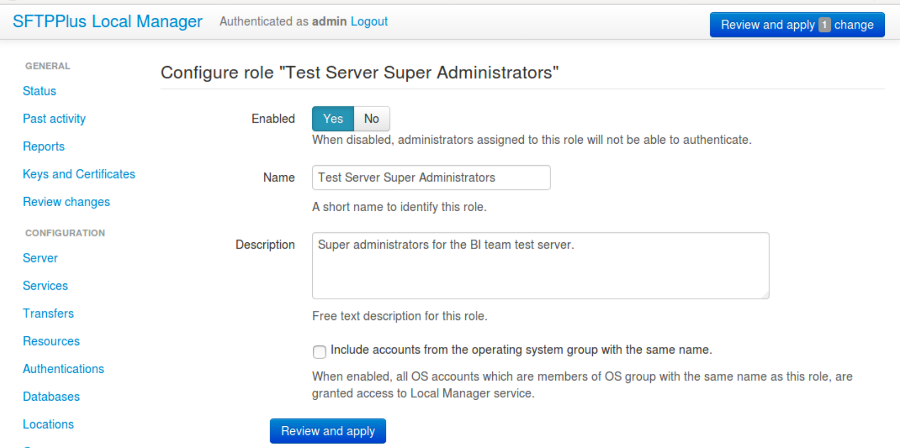
Roles can be added or changed via Web Manager below.
Adding a new role via text configuration#
Adding a new role is done by creating a new section inside the configuration
file.
The name of the section should be prefixed with roles/ and followed by the
role's UUID.
The role's UUID can be any unique string used to identify the role. Once defined, the UUID should not be changed.
For more information, please see the dedicated UUID documentation.
For example, to add a new role named SuperAdmins:
[roles/a904e3a6-a59b-4bbf-8abd-edcae4d3774f]
name = SuperAdmins
enabled = Yes
description = Administrators having unrestricted access to Web Manager.
enabled#
- Default value:
Yes
- Optional:
Yes
- From version:
2.1.0
- Values:
Yes
No
- Description:
This option specifies whether or not this role is disabled.
When a role is disabled, authentication is denied to all administrators associated with the disabled role.
name#
- Default value:
''
- Optional:
No
- From version:
2.1.0
- Values:
Any text.
Name of an existing group defined in the operating system.
- Description:
Human-readable short string used to identify this role.
description#
- Default value:
''
- Optional:
Yes
- From version:
2.1.0
- Values:
Any character string.
- Description:
Human-readable text that describes the purpose of this role.
source_ip_filter#
- Default value:
Empty
- Optional:
Yes
- From version:
4.14.0
- Values:
IP address access control rules
CIDR range access control rules
Country code access control rules
ASN access control rules
Empty
- Description:
Acts as source IP activation for this role when an administrator signs in. A matching allow rule activates the role for that administrator's login. A matching deny rule, or no match in a nonempty filter, leaves the administrator unassociated with this role for that login. Leave the filter empty to activate the role from any source IP. Authentication requires at least one associated role to remain active.
See source IP filtering for rule syntax, evaluation behavior, and examples.
permissions#
- Default value:
empty
- Optional:
Yes
- From version:
4.15.0
- Values:
Multiple lines of comma-separated definitions of permissions
target-rule, comma, separated, actions
- Description:
This defines the permissions available to administrators associated to this role.
When this is empty, the role has full administrative permissions.
The option is defined as a list of one or more definitions of permissions, with one definition per line.
A definition of permissions is a comma-separated list of values. The first value is an expression defining the targeted elements of the permissions. The remaining values are the actions allowed to be performed on the targeted elements.
The following element target classes are available:
configuration - includes all the configuration elements
operation - includes all the components/processes inside SFTPPlus
metrics - allows reading the process metrics in Prometheus format
sync - allows reading full configuration by a secondary instance for synchronization.
The following actions are available:
all - allow any action
read - allow reading the current configuration value or the state of a component
update - allow modifying/updating the value of a configuration or the state (start/stop) of a component
create - allow creating new configuration values
delete - allow removing existing configuration values
deny - this is a special value designed for complex scenarios and which will deny any action and stop processing any other rules. Most of the time you will not need to use it as the deny action is applied by default for any target.
If no actions are defined for a definition, the all action is used by default.
Once a target reaches the deny action the operation is denied and no further rules are checked. It takes precedence over any other configured action.
When the all action is configured together with other actions like create or update, are ignored and only the all action is used.
To allow an action, it must be matched with an explicit permission rule.
The order of the rules doesn't matter, unless your configuration contains a rule using the deny action.
The rules are checked from top to bottom. If an action is not explicitly allowed by the permissions rule, the process continues to check following defined permissions rules.
More information and examples are available on the Administrators authorization page.