
 SFTPPlus
Transfers operations#
Introduction#
This page describes how to implement client-side transfers using SFTPPlus
Check the separate reference documentation for transfers, which describes all the configuration options available when defining a transfer.
There is a separate documentation page dedicated to transfers scheduling, which goes into more detail about how to scheduled transfers.
Transfers are the pro-active component of SFTPPlus. While a file transfer service only acts in response to requests from remote clients, transfers actively check local or remote paths and initiate transfers based on changes in those folders.
Transfers are executed by transferring files between a source location and a destination location.
Transfer States#
A transfer can be in one of the following states:
Stopped - the transfer is not active and is not configured to be active at any time.
Started - the transfer is active and processing files from the source.
suspended - the transfer was started, but it is outside of its activity schedule.
Source failed - the source location is not available and files at the source are not processed. Processing will be started as soon as the source location is available, either by fixing the errors and manually starting it or by an automated location reconnection process.
Destination failed - The destination location is not available. Processing will resume as soon as the destination location is available, either by fixing the errors or manually starting it.
Failed - a critical error occurred while executing the transfer and the transfer was stopped. Manual intervention is required to restart the transfer.
Location States#
A location can be in one of the following states:
Stopped - no transfer is using this location and it was not manually started.
Started - the location is connected to the remote location.
Disconnected - the location is not connected to the remote location, but it will auto-reconnect when required by a transfer.
Failed - the location failed to connect to the remote location. Manual intervention is required to restart the location.
Adding a new transfer via Web Manager#
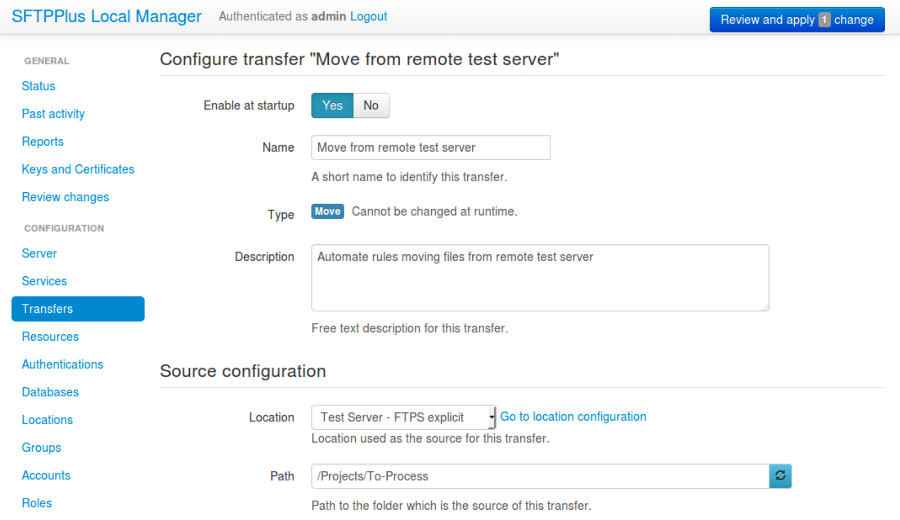
A transfer can be added or changed via Web Manager.
See below for an example of an initial configuration for a move transfer.
Adding a new transfer via text configuration#
Adding a new transfer configuration is done by creating a new section inside the configuration file. The name of the section should be prefixed with transfers/ and followed by the transfer's UUID.
The transfer's UUID can be any unique string used to identify the transfer. Once defined, the UUID should not be changed.
For more information about UUIDs, please see the dedicated UUID documentation.
For example, to add a new transfer configuration of type copy called Exported orders:
[transfers/00feb81f-a99d-42f1-a86c-1562c3281bd9]
name = Exported orders
description = Nightly orders exported by the accounting application.
type = copy
source_path = path/to/exported_orders
recursive = y
destination_path = path/to/exported_orders
Transferring files generated by slow producers#
To ensure that your files are always correctly processed by SFTPPlus or other managed file transfer products, ensure that files:
Do not have the final content.
Do not have the final name.
Are not placed in the final location.
When using the product to transfer files that are generated dynamically by other software, it can be very difficult to configure a stable delay that works in all cases.
One option is to set up very long stable intervals, but this comes with the drawback of delaying the processing of all the files.
We have encountered situations where the generated files were written to with interruptions -- significant delays between writes. Since both the file size and last modified timestamp remain unchanged, SFTPPlus considers the file stable after the stable interval passes, thus attempting to transfer it.
Because it is still kept open by the process generating it, you end up either transferring an incomplete file or failing to transfer it if the other process has opened it exclusively.
As a workaround and suggested approach for these cases, we recommend using either a different (temporary) folder for generating the files or using an extension filter for ignoring them. Both are detailed below.
The move/rename operation is atomic on Unix-like systems.
Based on our experience, this operation is quick on all modern operating systems even if for large file sizes.
When the final location or the files with final filenames have the final content, you can set up a short stable delay interval, which makes SFTPPlus act upon the final files as fast as possible.
Using a different folder#
The solution is to store the file into a temporary folder, different from the transfer source folder, until it is completed.
Once the file is complete, it can be moved to the transfer source folder.
Using a filename filter#
Another approach is to configure a filename filter for the transfer. This way, only files matching the filter are considered valid for transferring.
The software that generates the file can use either a different extension or a suffix while the file is being generated and renamed on completion.
If you have a significant number of files in the transfer source folder, we recommend the previous solution, as all the files will have to be checked against the filter, which might impact performance when there are thousands of them.
Delete Source Directories#
For recursive transfers, you can configure SFTPPlus to automatically delete the parent source directory, when that directory becomes empty.
Below is an example in which, after successfully transferring a file from path
E:\\Reports\\2020-12-28\\sales.pdf, the file is removed right away
while the parent is removed after 1 hour, if there are no other files
in the same source path:
[transfers/15d46e5a-25f6-11e9-87b3-0b5ae5eda581]
source_path = E:\Reports\
delete_source_on_success = True

delete_souorce_parent_delay = 3600
Any other file transferred from the same parent source path will reset the delay after which the delete operation is executed.
Destination Location#
The destination's locations are accessed only when a file which needs to be transferred is detected on the source location.
When the destination location is not available, the changes detected on the source location are still observed but no transfer is attempted. As soon as the destination location is available again, new changes observed on the destination will be processed.
The transfer will automatically start or resume the destination location when needed. It will not try to start the destination location when the location has failed.
Stop / Cancel a transferred file#
When a transfer is stopped, any pending file is cancelled.
The current data transfer is stopped and no other actions are executed for that transfer.
Transferring files with a temporary name#
A transfer can be configured to send / upload / push the file's content using a temporary name, renaming to its initial name once all the data was received by the server.
This is done using the destination_temporary_suffix configuration option.
In the example below, the content of the file E:ReportsINV-2019-08-23.pdf is sent to the remote server as a file /inbox/INV-2019-08-23.pdf.tmp. Once the file was received on the server, it is renamed from /inbox/INV-2019-08-23.pdf.tmp to /inbox/INV-2019-08-23.pdf:
[transfers/15d46e5a-25f6-11e9-87b3-0b5ae5eda581]
source_path = E:\Reports\
destination_path = /inbox

destination_temporary_suffix = .tmp
When destination_temporary_suffix is configured, any file transfer to the destination will be done using a temporary name.
In the case in which you only want a selected set of files transferred using temporary names or want to transfer files using a temporary prefix, you can leave destination_temporary_suffix empty and set destination_path_actions with the temporary-suffix or temporary-prefix actions. See the dedicated documentation for the temporary-suffix action.
Transferring to legacy / restricted remote servers#
In order to transfer a file, SFTPPlus performs a set of extra operations in addition to the actual request to upload the file's content. For example, it can check if a file already exists at the destination in order to prevent on overwrite.
When dealing with legacy servers, some of these extra operations might not be supported. You can also have to deal with a remote server which restricts operations other than the actual file transfer itself.
SFTPPlus allows sending a file using only the basic file upload operations provided by the transfer protocol.
Below is a list of configuration options which trigger extra requests:
Set the remote location with idle_connection_keepalive_interval = 0. In this way, SFTPPlus does not trigger idle folder listing in order to force keeping the connection opened.
Disable destination overwriting rule with overwrite_rule = disable. In this way, SFTPPlus does not perform an extra request to check if a remote file already exists.
Transfer chunk size#
When the content of a file is transferred, this is done as a sequence of data transfers requests, each request handling a portion of a file.
For example, you can transfer a 10GB file, without having to load the whole file in memory.
The size of the portion of the file that is transferred with each request is defined by the transfer_chunk_size configuration option.
There is a balance to be found when setting the transfer_chunk_size value. A small chunk size will lead to a large number of requests and extra communication overhead, which can reduce performance. A large chunk size will lead to a smaller number of requests, but it can lead to higher memory usage. It can also cause transfer failures if the network connection is not stable or the source or destination servers cannot handle requests of a larger size.
Fault-tolerant transfers#
SFTPPlus will do its best to perform the requested transfers and under certain circumstances will retry on transfer failures.
From the configuration, you can define the number of times to retry and the time interval to wait after retries.
Once all retries are exhausted, the transfer will fail and SFTPPlus will no longer try to process/transfer that file.
Files that were previously failed to be transferred, can be processed/transferred again by restarting the transfer.
Fault-tolerant source monitoring#
When a transfer is started, SFTPPlus will check for the required permissions to monitor the source path for changes, the configured path exists and this path is valid.
If the source path was available at startup, but after some time it is no longer available and it fails to get the content of the source path, SFTPPlus will retry the after changes_poll_interval seconds.
This is done for a number of time configured by the retry_count option. An event is emitted on each failure.
Once the source path is available again, the transfer is resumed and new or changed files will be transferred.
The most common errors found on all supported protocols are:
Source path not found.
Source path without reading or listing permissions.
Connection closed while the source was checked.
Resumed transfers#
Resuming unfinished transfers, either upload or download, is supported across available file transfer protocols as follows:
Protocol |
Download |
Upload |
|---|---|---|
FTP/FTPS |
Yes |
Yes |
SFTP |
Yes |
Yes |
SCP |
No |
No |
HTTP |
Yes |
No |
Note
Our roadmap includes adding support for resuming transfers across all available protocols. In the case that resume support is not available for your preferred transfer protocol, please contact us.
Hard Links and Symbolic Links#
Hard links and symbolic links are observed as normal files.
When both the link and original are monitored, changes to the link will trigger notifications for the original file as well as any other hard links pointing to it.
When only the link is monitored, changes to the source will also trigger notifications.
Resolving duplicate / successive events#
When an event occurs at the source location, it is not signaled right away. A buffer time interval is used to remove duplicate events and emit the event only once the file or folder is stable.
For example, when a large file is copied, the operating system will emit a stream of events after each intermediary change. The monitor will queue these changes and merge them into a single event.
The time frame in which duplicate events are resolved is 1 second. After an event occurs, it waits 1 second before emitting the event. If no event occurs for the same source, the event is emitted. Otherwise, the event is merged and the time interval is extended by another second in which it can be further merged with another event, or emitted.
Here is the list of events that are emitted. Path is used as a generic reference to a file or a folder:
Existing - for paths that are already present when the process is started.
Modify - for a path that has a changed size or modify time.
Delete - for a path that is no longer in the monitored path. Either removed from there or moved to a path that is not monitored.
Create - for a path that has appeared in the monitored path. Either created there or moved from a path that is not monitored.
Moved - for a path that was renamed / moved inside the monitored path.
Here are the rules based on which events are resolved:
Existing + Modify = Existing
Existing + Delete = Ignore
Modify + Modify = Modify (and wait for next event)
Modify + Delete = Delete (without delay)
Modify + Move = Move + Modify (modify is last)
Create + Modify = Create (and wait for next event)
Create + Delete = Discard (file was created for a very short time)
Create + Move = Create (at the moved path)
Delete.File + Create.File = Modify (the file was completely replaced)
Delete.Folder + Create.File = Create.File
Moved + Created = Moved + Created (with delay)
Moved + Modified = Moved + Modified (with delay)
Moved + Deleted = Deleted for the source path